Tagging contacts and companies
Tags are free-form labels your team applies to contacts and companies. Here is where to add them, how to filter and export by them, how a campaign can tag every contact it starts working, how they reach your CRM, and how to read and write them from Claude.
A tag is a short label such as VIP, Q4 Push, or Met at SaaStr that anyone on your team can put on a contact or a company. Tags are shared across the workspace, created the moment someone first types a new name, and managed from one catalog in Settings.
Where tags show up
- A Tags column on the Contacts and Companies pages, with a filter that can include tags, exclude tags, or show only untagged records
- A tags row on every contact and company page, and on the Profile tab of a sequence
- A Tags action in the bulk bar when you select several rows
- A
Tagscolumn in CSV exports (names separated by;) - A catalog under Settings, General for renaming, recoloring, merging, and deleting tags
Adding and removing tags
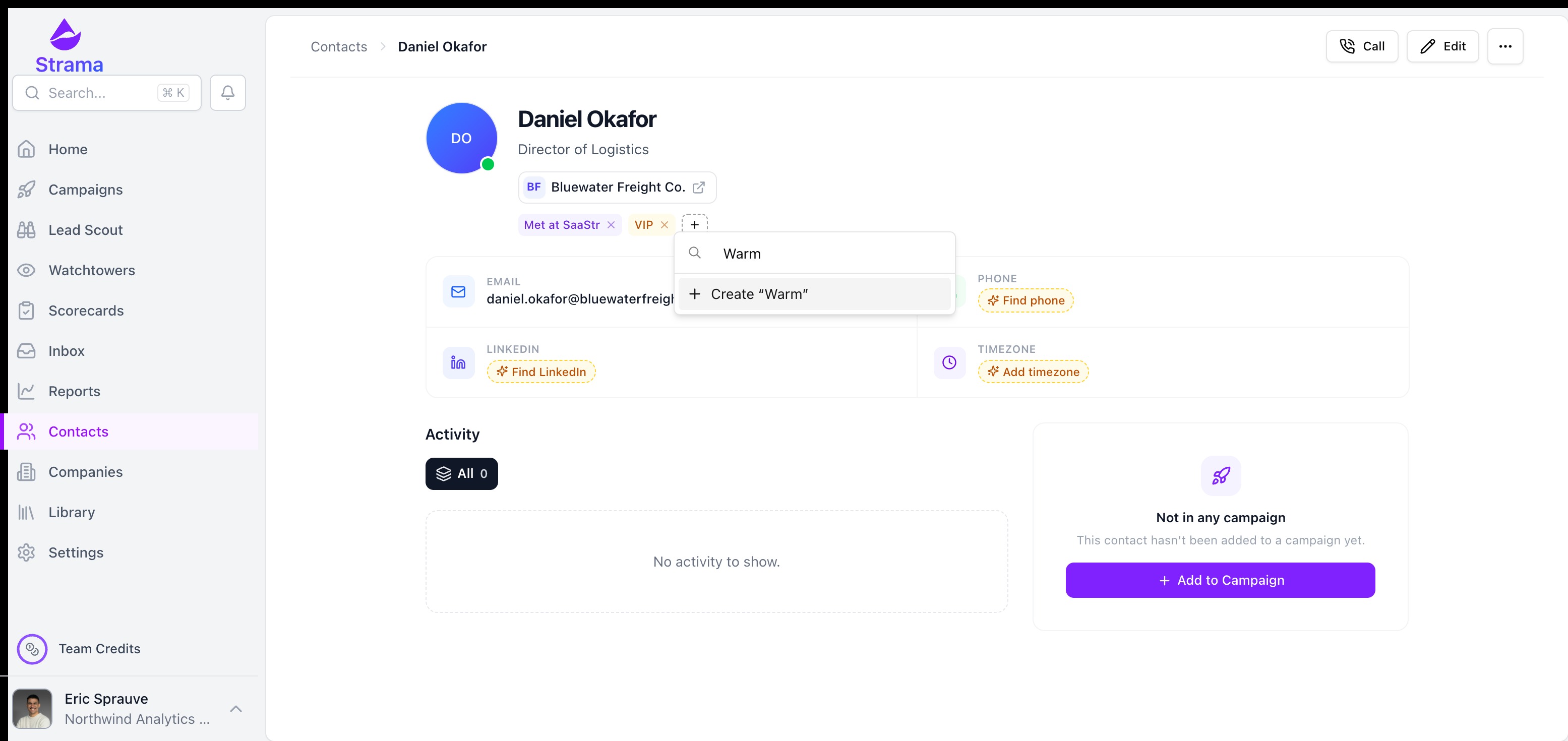
On a contact or company page, click the + next to the existing tags, then pick a tag or type a new name and press Enter. Click the x on a chip to remove it. The same picker sits on the Profile tab of a sequence, so you can tag a lead without leaving the conversation.
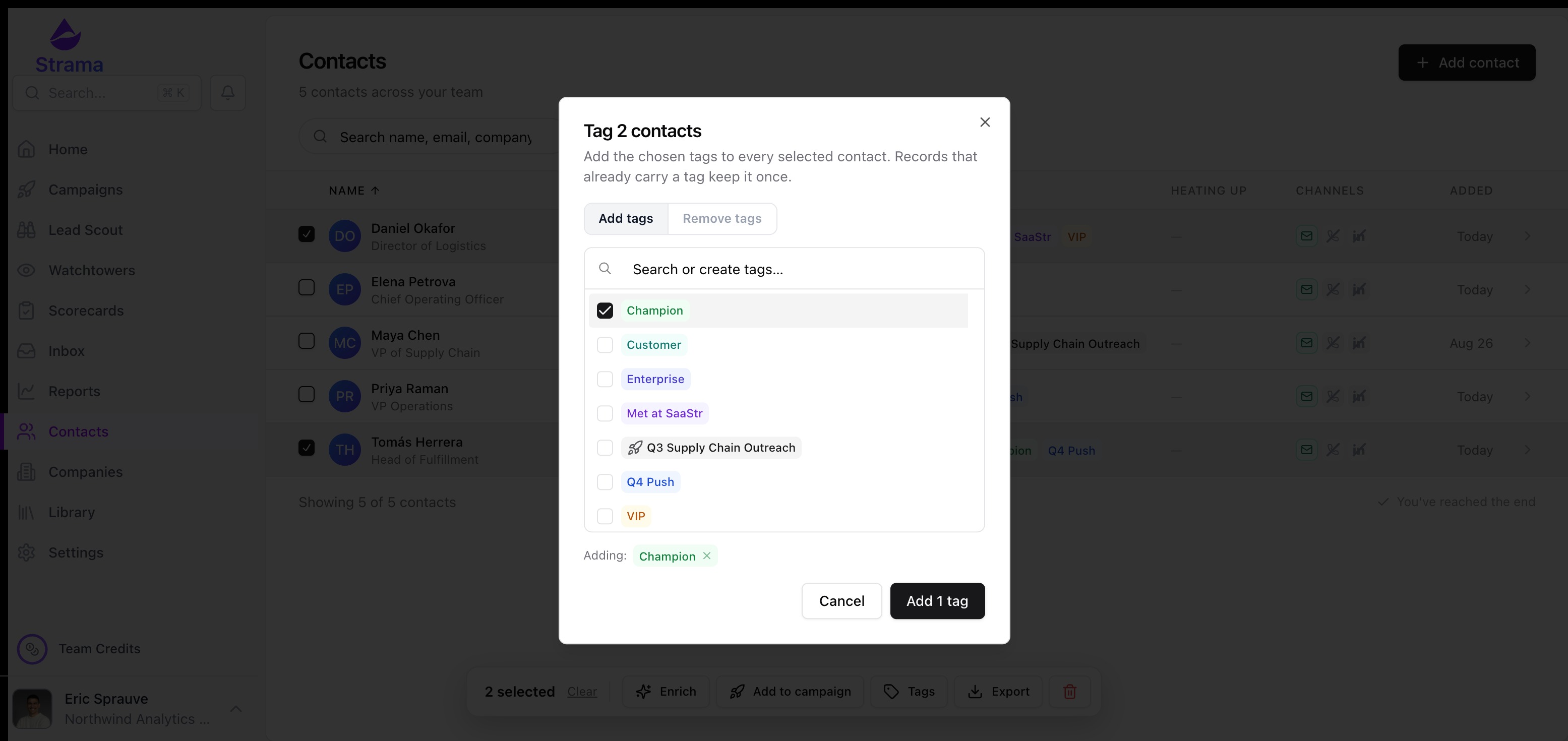
To tag many records at once, select them on the Contacts or Companies page and choose Tags in the bar that appears. You can add tags to the selection or remove tags from it. Adding never touches the other tags a record already has.
Tip: Names are trimmed and matched without regard to case, so vip and VIP are the same tag. A name can be up to 50 characters.
Filtering by tag
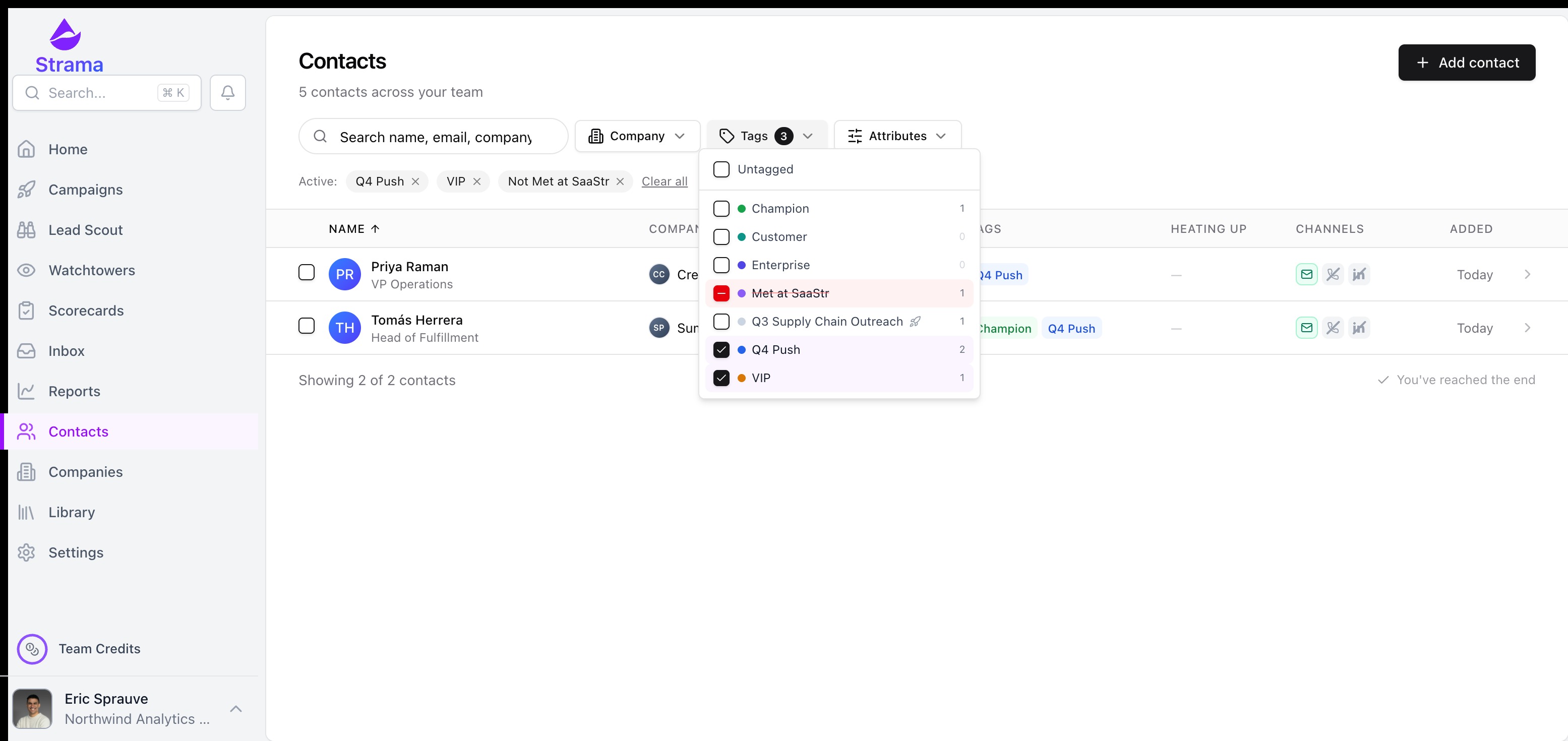
Open the Tags filter on the Contacts or Companies page. Each tag has three states: off, include, and exclude. Included tags are combined with OR (a record needs any of them), and excluded tags remove every record that carries them. The Untagged row at the top shows records with no tags at all, which is handy for cleanup.
Active tag filters appear as chips above the table, alongside your other filters, and the export button respects them.
Campaign auto-tagging
Under Settings, Team, in the Automations section, the Tag contacts with the campaign name switch (Owners only) makes every campaign tag a contact with the campaign's name the first time one of its sequences starts. Restarting a paused sequence does not tag again, and renaming the campaign renames the tag.

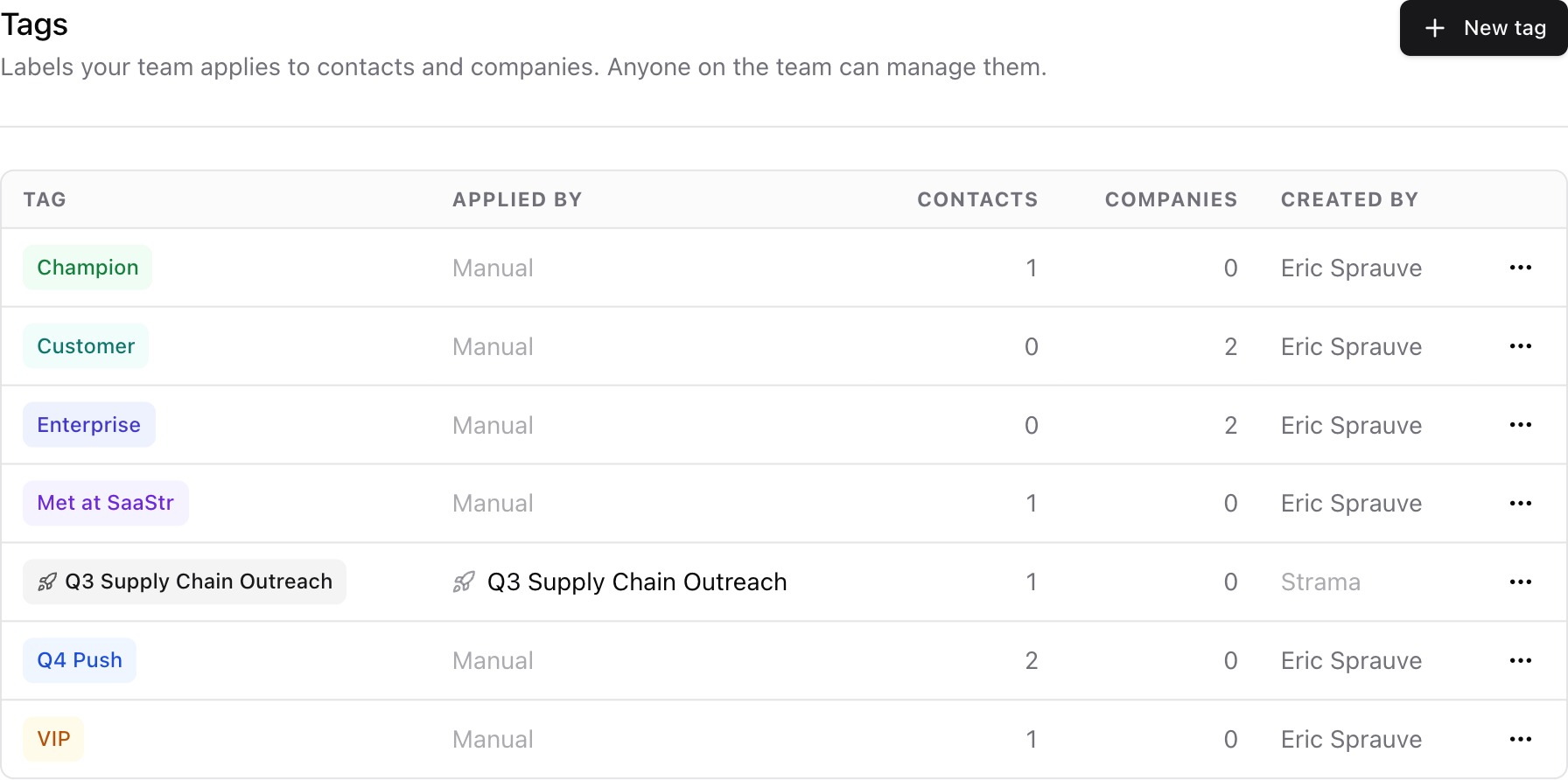
When you turn the switch on, Strama offers to tag contacts whose sequences already started, so your history is covered too. Tags applied this way show a rocket glyph in the picker and the catalog, and they cannot be renamed directly: rename the campaign instead.
Managing the catalog
Settings, General lists every tag with how many contacts and companies carry it, who created it, and which campaigns apply it automatically. From the row menu you can:
- Edit the name or color
- Merge into another tag, which moves every record over and removes the source
- Delete the tag, which removes it from every record but leaves the records themselves alone
If a rename would collide with an existing tag, Strama asks you to merge instead, so two people cannot accidentally fold vocabularies together.
Tags in your CRM
If your CRM is connected, open Settings, CRM, Field mapping and map Tags on the Contact card, the Company card, or both, to a text property. Strama then writes the record's tag names to that property, joined with ;, whenever its tags change, on the same schedule as every other mapped field.
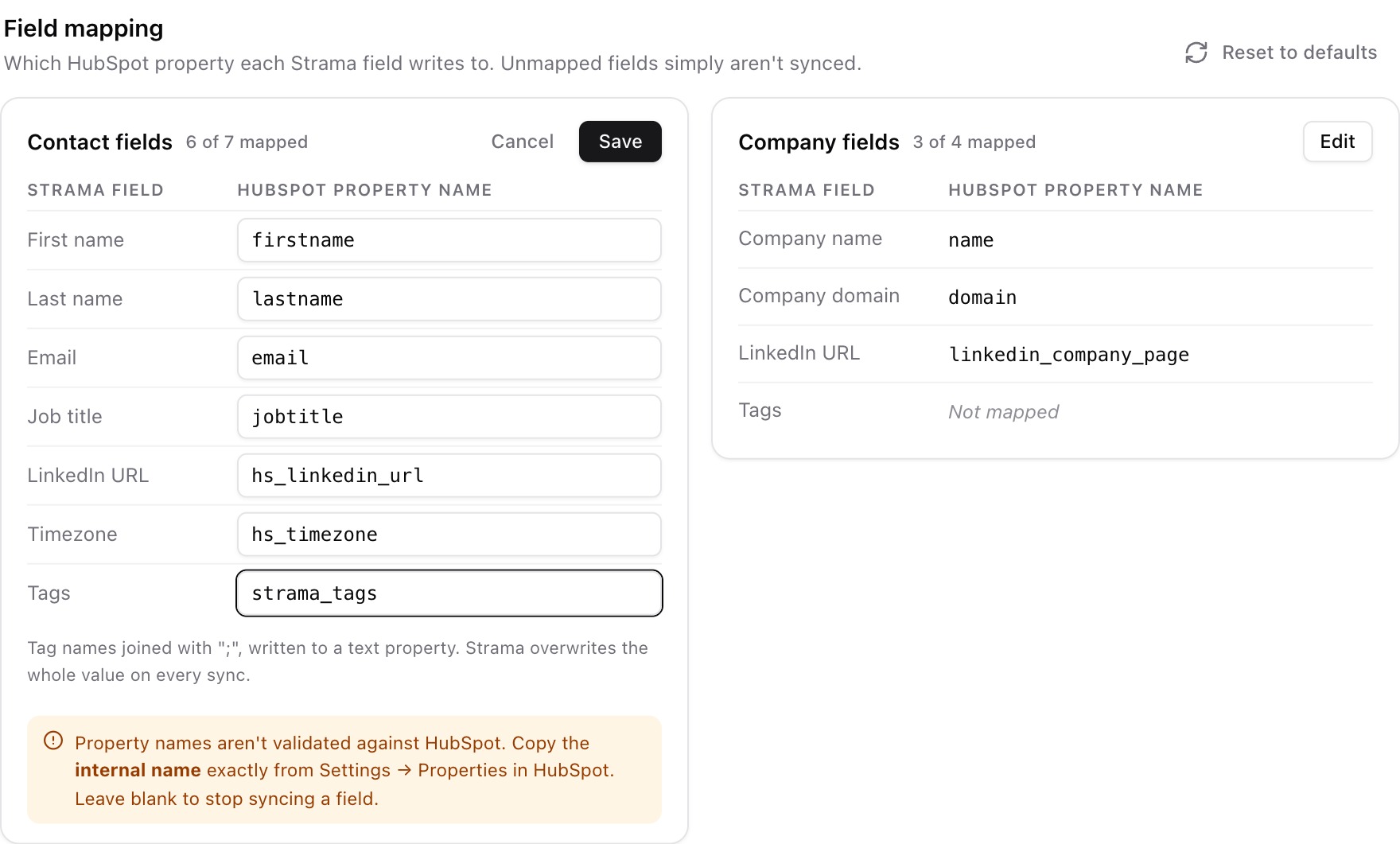
Strama owns that property: each sync rewrites the whole value, so anything a rep typed there by hand is replaced, and removing the last tag clears it. Pick a plain text property. A dropdown or multi-select property rejects names that are not already options, and the record shows up in the sync status list with that error.
Note: In Create only mode tags are written once, when Strama creates the CRM record, and never updated afterwards.
Tags from Claude
If you have connected Strama to Claude, tags are available on the contact and company object types:
tagscomes back on every search result and upsert result, as an alphabetical list of names.- Filter with the
tagproperty:EQone name,INseveral,HAS_PROPERTYfor any tagged record,NOT_HAS_PROPERTYfor untagged ones. Thedescribetool lists your team's current tag names. - Write with
addTagsorremoveTagsto change a few tags, ortagsto replace the whole set ([]clears it). Unknown names are created on add and ignored on remove.
There is also a tag object type: search it to see every tag with its contact and company counts, upsert it to rename or recolor a tag, and use delete_entities to remove one. Try prompts like "tag every contact who replied this week with Warm" or "how many companies are tagged Enterprise?".
FAQ
Does tagging a contact tag their company too?
No. Contact tags and company tags are separate, so Champion on a person and Customer on their company can coexist without meaning the same thing.
What happens to a tag when I delete a campaign?
The tag stays on the contacts it was applied to; it simply stops being a campaign tag and can then be renamed or deleted from the catalog like any other.
Can I import tags from a spreadsheet?
Not yet. Import your contacts as usual, then select them and use the bulk Tags action to label the batch.
Who can manage tags?
Every member of the workspace can create, apply, rename, merge, and delete tags. The catalog lives on the General settings tab for that reason.